
When your computer starts to slow down during gaming, multitasking, or heavy software use, a RAM bottleneck might be the real reason. RAM plays a major role in how fast your PC loads apps, manages tasks, and switches between programs. If your system doesn’t have enough memory or if the RAM is too slow, your CPU and GPU cannot perform at their best.
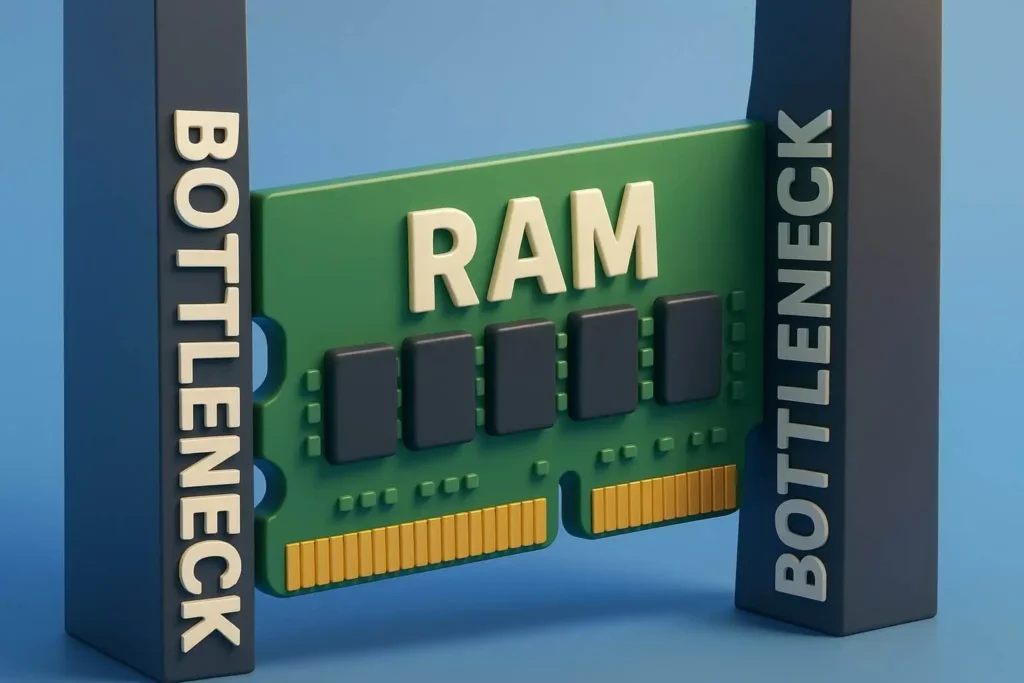
Table of Contents
The Ultimate Guide to PC RAM Bottleneck and How to Fix It
Whether you’re a gamer, video editor, or someone who uses heavy software every day, you’ve probably faced slowdowns, stuttering, or sudden freezes. In many cases, the real problem isn’t your processor or graphics card it’s a RAM bottleneck. When your system doesn’t have enough memory or the RAM can’t keep up with your hardware, overall performance drops instantly.
This easy guide breaks down everything you need to know about RAM bottlenecks, how they impact your PC, and how you can fix them without wasting money. We’ll also explain why Bottleneck Calculators is one of the most reliable tools for analyzing PC performance and detecting bottlenecks with real-world accuracy.
What Is a PC RAM Bottleneck?
A PC RAM bottleneck happens when your system memory isn’t fast enough or isn’t large enough to support your CPU or GPU during demanding tasks. When the RAM can’t deliver data quickly, your processor is forced to wait, slowing down your entire system. Unlike a graphics or storage bottleneck, a RAM bottleneck is usually less obvious but still affects overall performance.
You may not notice it right away, but the signs start appearing during heavy tasks such as gaming, video editing, 3D rendering, or running multiple programs at once.
Common Signs of a RAM Bottleneck
- Stuttering or big FPS drops in games when scenes load
- Slow program startup or delayed file opening
- Memory usage staying at 90–100% even with simple tasks
- Lag during multitasking, such as switching between apps
- Poor performance in editing tools like Photoshop or Premiere
Many users focus only on CPU or GPU upgrades, not realizing that insufficient RAM can be the hidden cause of slowdowns. If your memory can’t keep up, upgrading other components won’t fix the issue. Increasing RAM size or speed often provides a bigger performance boost than people expect.
How to Identify a RAM Bottleneck
Finding out whether your PC is suffering from a RAM bottleneck requires monitoring your system while performing real tasks such as gaming, editing, or multitasking. Below are the most effective and reliable methods to detect it:
1. Task Manager / Activity Monitor
Check your system’s live memory usage while running heavy applications.
If your RAM stays close to 90–100%, your system is likely being limited by insufficient memory.
2. Performance Monitoring Tools
Tools like MSI Afterburner, HWInfo, or CPU-Z let you track RAM speed, bandwidth, and real-time usage.
These tools help you see whether your RAM is feeding your CPU and GPU fast enough.
3. Online Bottleneck Calculators
Web platforms such as Bottleneck Calculators evaluate your CPU, GPU, and RAM combination.
They provide a clear analysis of whether your memory is too slow, too small, or mismatched with the rest of your hardware.
4. Stress Tests
Running memory-heavy programs, benchmark tools, or large editing software can reveal performance limits.
If your system slows down under pressure, the RAM could be the bottleneck.
Pro Tip
A PC with 16GB of slow RAM can perform worse than a PC with 32GB of faster RAM.
Both RAM size and RAM speed (MHz) matter when it comes to smooth performance.
Causes of PC RAM Bottleneck
A RAM bottleneck can occur for several reasons, and even powerful PCs can slow down if the memory system isn’t optimized. Here are the most common causes explained in simple terms:
1. Not Enough RAM Installed
Modern software requires more memory than ever.
Today’s AAA games, video editing programs, and multitasking workloads typically need 16GB of RAM or more.
Systems running on 8GB or lower often run out of memory quickly, forcing the PC to use slow virtual memory, which leads to lag and freezes.
2. Low RAM Speed
RAM speed (measured in MHz) plays a huge role in how fast data moves between the CPU and memory.
If you are using slow DDR4 or older DDR3 modules, your processor may constantly wait for data, causing reduced performance even if the RAM size is enough.
3. Mixing Different RAM Types
Using RAM sticks with different speeds, brands, or capacities can cause compatibility issues.
This often disables dual channel or quad-channel mode, cutting your memory bandwidth in half and causing noticeable slowdowns in games and heavy apps.
4. Heavy Applications That Use Too Much Memory
Programs like Adobe Premiere Pro, Blender, After Effects, and other 3D or editing tools require fast, high capacity RAM to function smoothly.
If the RAM can’t keep up, these apps lag, freeze, or take longer to render previews.
5. Background Tasks Consuming RAM
Even if your system has enough memory, too many background apps can eat up available RAM.
This includes startup programs, browsers with multiple tabs, game launchers, and hidden system processes.
When RAM runs out, the system starts to slow down instantly.
How to Fix a RAM Bottleneck
Fixing a RAM bottleneck usually requires upgrading your memory or improving the way your current system uses RAM. Here are the most effective solutions explained clearly:
1. Upgrade RAM Capacity
If your system is running out of memory, increasing the total RAM is the most direct solution.
Modern games, editing software, and multitasking workloads often need 16GB to 32GB for smooth performance.
2. Increase RAM Speed (MHz)
Faster RAM helps your CPU communicate with the memory more efficiently.
Upgrading to higher-speed DDR4 or DDR5 can instantly reduce lag and boost frame rates, especially in CPU-heavy games.
3. Enable Dual-Channel or Quad-Channel Mode
Installing two or four identical RAM sticks allows your system to run in multi-channel mode.
This significantly increases memory bandwidth and improves performance in gaming, editing, and rendering tasks.
4. Close Background Applications
Sometimes your PC has enough RAM, but background programs consume it.
Closing unnecessary apps, disabling startup software, and clearing memory-heavy tasks can free up resources instantly.
5. Use Bottleneck Calculators
Tools such as Bottleneck Calculators help identify whether your RAM, CPU, or GPU is slowing your system down.
This prevents unnecessary upgrades and helps you choose the right components.
6. Check Hardware Compatibility
Make sure your RAM speed is supported by your motherboard and CPU.
Even high-speed RAM will run at lower speeds if the system doesn’t support it.
Pro Tip
Adding more RAM alone won’t always solve the issue.
If the RAM speed is too low or if your CPU/GPU is not powerful enough, a bottleneck may still exist.
Why Bottleneck Calculators Is the Best Tool
When it comes to finding out whether your PC is being slowed down by RAM, CPU, or GPU issues, Bottleneck Calculators stands out as one of the most reliable tools available. It offers accurate insights, simple results, and practical upgrade recommendations that help users avoid guesswork.
1. Highly Accurate Analysis
The tool uses real world hardware data to calculate how your CPU, GPU, and RAM work together. This ensures you get precise information about what’s actually limiting your system.
2. Extremely Easy to Use
You don’t need technical knowledge. Just enter your components, click analyze, and the platform instantly shows whether your system has a bottleneck and where the issue lies.
3. Smart Upgrade Recommendations
Instead of buying random parts, the tool suggests the exact RAM size, speed, or GPU upgrades that will give you the best performance boost.
4. Helps You Save Money
Many users upgrade components unnecessarily. Bottleneck Calculators helps you avoid overspending by showing what actually needs improvement.
5. Useful for Gamers and Professionals
Whether you’re a gamer, streamer, video editor, or engineer, the platform delivers accurate performance insights based on your workload.
Advanced Tips to Avoid RAM Bottlenecks
Avoiding RAM bottlenecks isn’t only about upgrading hardware it’s also about optimizing how your system uses memory. Here are advanced but easy-to-follow tips that keep your PC running smoothly:
1. Monitor RAM Usage Regularly
Use tools like Task Manager, Resource Monitor, or HWInfo to check real time RAM usage.
Keeping an eye on memory consumption helps you spot issues early before they turn into slowdowns or crashes.
2. Choose RAM With Low CAS Latency
CAS latency (CL) has a major impact on responsiveness.
Lower latency RAM improves performance in games, editing software, and multitasking by reducing the time it takes for memory to deliver data to the CPU.
3. Install RAM in the Correct Slots
To enable dual-channel or quad-channel mode, RAM sticks must be inserted in specific slots.
Following your motherboard manual ensures maximum bandwidth and prevents unnecessary bottlenecks.
4. Upgrade the Motherboard if Needed
Some older motherboards limit RAM speed, even if you install high frequency modules.
If your RAM is running slower than its rated speed, you may need a newer motherboard that supports higher frequencies.
5. Keep Software Optimized
RAM cleaners and automatic “memory boosters” can sometimes cause more harm than good.
Manual management closing unused applications, disabling heavy startup programs, and monitoring browser tabs often delivers better and safer results.
Key Takeaways
Understanding RAM bottlenecks is essential for diagnosing and fixing slow PC performance. A memory bottleneck often goes unnoticed, yet it can drastically impact gaming, multitasking, and professional workloads.
- A RAM bottleneck is one of the most common hidden causes of system lag and inconsistent performance.
- Regularly monitoring RAM usage, bandwidth, and speed helps you catch performance issues early.
- Tools like Bottleneck Calculators provide detailed and accurate analysis, making it easy to identify whether RAM, CPU, or GPU is causing the slowdown.
- Upgrading RAM capacity and switching to faster, low-latency modules can significantly boost gaming, editing, and rendering performance.
- A balanced system is far more effective than simply adding more RAM. Always ensure your CPU, GPU, and memory work together efficiently.
A well-optimized memory setup ensures smoother gameplay, faster load times, and a more responsive PC overall.
Conclusion
A RAM bottleneck is one of the most common reasons behind PC slowdowns, game stutters, and weak multitasking performance. Whether you upgrade your RAM, improve memory speed, or optimize your system, fixing RAM bottlenecks can dramatically improve your daily computing experience.
With the right setup and a few performance tweaks, your PC will run smoother, faster, and more efficiently than ever.
FAQs
Can RAM bottleneck my gaming performance?
Yes. Even with a powerful CPU and GPU, slow or insufficient RAM can cause FPS drops, stuttering, and long load times.
Can I mix different RAM brands?
It’s possible but not recommended. Mismatched RAM can reduce efficiency and prevent dual/quad-channel operation.
Does RAM speed matter?
Absolutely. Higher frequency RAM allows faster CPU-GPU communication, reducing performance bottlenecks.
- PC RAM bottleneck
- RAM upgrade
- Gaming RAM optimization
- CPU RAM bottleneck
- RAM speed impact
- System memory bottleneck
- PC memory bottleneck
- Dual-channel RAM
- Memory bandwidth optimization
- RAM performance optimization
- Optimize RAM for gaming
- RAM upgrade for gaming
- RAM bottleneck fix
- High-speed RAM for PC
- RAM capacity for gaming
- Memory bottleneck troubleshooting