
A PC bottleneck is one of the most common performance problems faced by gamers and PC users. Many people believe that upgrading hardware is the only solution, but that’s not always true. In reality, you can reduce bottleneck without upgrading hardware by optimizing system settings, software, cooling, and performance configurations.
This complete guide explains practical, proven, and free methods to minimize CPU and GPU bottlenecks and get better performance from your existing PC.
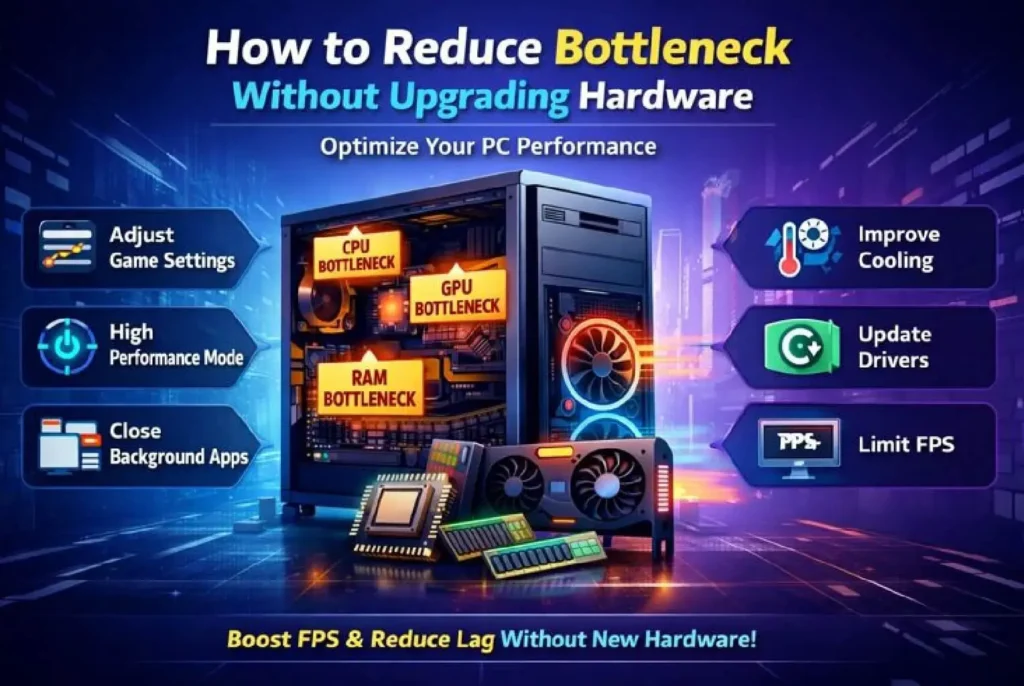
Table of Contents
What Is a PC Bottleneck?
A PC bottleneck occurs when one component in your system limits the performance of other components. Most commonly, bottlenecks happen between the CPU (processor) and GPU (graphics card).
For example:
- A weak CPU paired with a powerful GPU causes CPU bottleneck
- A weak GPU paired with a strong CPU causes GPU bottleneck
When this happens, your PC cannot use its full potential, resulting in:
- Low FPS
- Stuttering
- High CPU or GPU usage
- Inconsistent frame times
- Poor gaming or multitasking performance
Can You Reduce Bottleneck Without Upgrading Hardware?
Yes. While hardware upgrades provide the biggest improvements, many bottlenecks are caused by poor optimization, not weak hardware.
By making the right adjustments, you can:
- Improve FPS
- Stabilize frame times
- Increase GPU utilization
- Reduce CPU load
- Improve overall system balance
1. Identify the Real Bottleneck First
Before making changes, you must identify whether you have a CPU bottleneck or a GPU bottleneck.
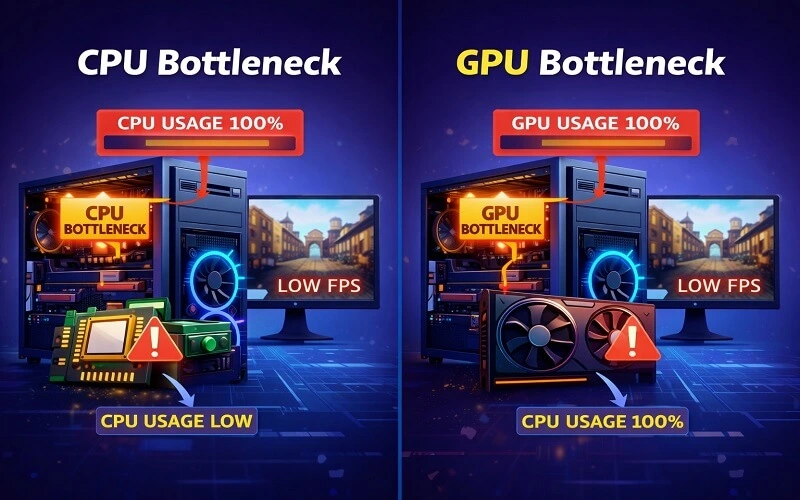
Signs of CPU Bottleneck:
- CPU usage near 90–100%
- GPU usage below 70%
- Low FPS in CPU-heavy games
- Stuttering and frame drops
Signs of GPU Bottleneck:
- GPU usage near 95–100%
- CPU usage relatively low
- FPS improves when lowering resolution
- High temperatures on GPU
You can use tools like Task Manager, MSI Afterburner, or an online PC bottleneck calculator to analyze system balance.
2. Optimize In-Game Graphics Settings
Game settings play a major role in bottlenecks.
Reduce CPU Load (CPU Bottleneck Fix):
Lower these settings:
- View distance
- Draw distance
- NPC or crowd density
- Physics and AI calculations
- Shadows (CPU-heavy in many games)
Cap FPS to a stable value instead of letting it fluctuate.
Reduce GPU Load (GPU Bottleneck Fix):
Lower these settings:
- Resolution
- Anti-aliasing
- Shadows quality
- Texture quality
- Ray tracing
Balanced settings can dramatically reduce bottlenecks without any hardware changes.
3. Adjust Screen Resolution Strategically
Resolution directly affects system balance.
- Lower resolution → more CPU usage
- Higher resolution → more GPU usage
If you have a CPU bottleneck, slightly increasing resolution (for example, from 1080p to 1440p) can shift workload to the GPU and reduce CPU stress.
If you have a GPU bottleneck, lowering resolution helps increase FPS.
4. Enable High Performance Power Plan
Windows power settings can silently limit performance.
Steps:
- Open Control Panel
- Go to Power Options
- Select High Performance or Ultimate Performance
This allows the CPU and GPU to run at higher clock speeds consistently.
5. Close Background Applications
Background processes can cause serious bottlenecks.
What to Close:
- Web browsers with many tabs
- Game launchers
- Recording or streaming software
- RGB control software
- Unnecessary startup apps
Use Task Manager to identify CPU-heavy processes and close them before gaming.
6. Disable Unnecessary Startup Programs
Startup programs slow down your system and increase CPU usage.
How:
- Open Task Manager
- Go to Startup
- Disable unnecessary programs
This frees system resources and improves responsiveness.
7. Update GPU, Chipset, and OS Drivers
Outdated drivers can cause inefficient hardware utilization.
What to Update:
- GPU drivers (NVIDIA / AMD / Intel)
- CPU chipset drivers
- Windows updates
Driver updates often improve FPS, stability, and performance efficiency.
8. Enable XMP or DOCP for RAM
RAM speed has a major impact on CPU performance.
Many PCs run RAM at default speeds (2133 MHz or 2400 MHz), which can cause CPU bottlenecks.
Solution:
- Enter BIOS
- Enable XMP (Intel) or DOCP (AMD)
This allows RAM to run at its rated speed and improves CPU performance.
9. Improve Cooling to Prevent Thermal Throttling
High temperatures cause CPUs and GPUs to slow down automatically.
Symptoms of Thermal Throttling:
- Sudden FPS drops
- High temperatures
- Clock speeds dropping under load
Solutions:
- Clean dust from fans and heatsinks
- Improve airflow
- Replace thermal paste
- Use laptop cooling pads
Lower temperatures allow components to maintain higher clock speeds.
10. Use FPS Limiters or V-Sync
Uncapped FPS increases CPU load unnecessarily.
Options:
- Enable V-Sync
- Use in-game FPS limiters
- Use NVIDIA or AMD control panel limiters
Stable FPS reduces CPU stress and improves frame consistency.
11. Adjust Graphics Driver Control Panel Settings
GPU control panels offer optimization options.
NVIDIA / AMD Tips:
- Set power management to Maximum Performance
- Enable low latency modes
- Disable unnecessary image sharpening
- Optimize shader cache
These settings improve GPU efficiency and reduce micro-stuttering.
12. Optimize Windows for Gaming
Windows background features can affect performance.
Disable:
- Xbox Game Bar (if not needed)
- Background apps
- Unnecessary notifications
- Visual effects (animations, transparency)
Enable Game Mode for better resource allocation.
13. Overclocking (Optional & Advanced)
If you’re experienced, mild overclocking can help.
- CPU overclock reduces CPU bottleneck
- GPU overclock improves GPU performance
- RAM overclock improves CPU responsiveness
⚠️ Only attempt if you understand cooling and stability risks.
14. Storage Optimization
Slow storage can indirectly cause stuttering.
Tips:
- Install games on SSD
- Keep at least 20% free disk space
- Avoid background file transfers during gaming
15. Understand Bottleneck Percentages
Many users panic over small bottleneck percentages.
- 0–10% bottleneck → Excellent
- 10–20% bottleneck → Acceptable
- 20%+ bottleneck → Noticeable performance loss
Minor bottlenecks are normal and unavoidable.
Common Types of PC Bottlenecks and How to Fix Them Without Upgrading Hardware
| Bottleneck Type | Main Cause | Common Symptoms | How to Reduce Without Upgrading |
|---|---|---|---|
| CPU Bottleneck | Weak or overloaded processor | Low FPS, stuttering, high CPU usage | Lower CPU-heavy settings, cap FPS, close background apps |
| GPU Bottleneck | Weak graphics card or high resolution | GPU usage 95–100%, low FPS | Lower resolution, reduce graphics quality, disable ray tracing |
| RAM Bottleneck | Low RAM speed or insufficient memory | Stuttering, slow loading, freezes | Enable XMP/DOCP, close background programs |
| Thermal Bottleneck | Overheating CPU or GPU | FPS drops, throttling, high temperatures | Improve cooling, clean dust, improve airflow |
| Software Bottleneck | Background apps or outdated drivers | Random lag, poor performance | Update drivers, disable startup programs |
Is Reducing Bottleneck Without Upgrading Worth It?
Absolutely.
Optimization can:
- Increase FPS by 10–30%
- Reduce stuttering
- Improve stability
- Extend PC lifespan
- Save money
For many users, optimization is enough to enjoy smooth gaming without upgrading hardware.
Conclusion
A PC bottleneck does not always mean you need to upgrade your hardware. In many cases, performance issues are caused by poor optimization, incorrect settings, or background processes. By adjusting in-game graphics settings, optimizing Windows performance, improving cooling, updating drivers, and managing background applications, you can significantly reduce bottleneck without upgrading hardware.
Understanding whether your system has a CPU, GPU, or RAM bottleneck is the key to applying the right fixes. Even small optimizations like enabling XMP, using an FPS limiter, or switching to a high-performance power plan can lead to smoother gameplay, higher FPS, and better system stability.
If you want a quick way to analyze your system balance, you can use an online PC Bottleneck Calculator as a reference. With the right tweaks and optimizations, you can get the most out of your existing PC and enjoy better performance without spending extra money.
FAQs
Can I reduce a PC bottleneck without upgrading hardware?
Yes. Many bottlenecks are caused by poor system optimization rather than weak hardware. You can reduce bottlenecks by adjusting game settings, closing background apps, updating drivers, improving cooling, and optimizing Windows performance.
What is the most common bottleneck in gaming PCs?
The most common bottleneck is between the CPU and GPU. A weak CPU can limit a powerful GPU, while a weak GPU can struggle at high resolutions or graphics settings
Does lowering graphics settings reduce CPU bottleneck?
Not always. Lowering graphics settings mainly reduces GPU load. To reduce a CPU bottleneck, you should lower CPU-heavy settings such as view distance, NPC density, physics calculations, and uncapped FPS.
Is a small bottleneck percentage bad?
No. A bottleneck of 0–10% is considered excellent, and 10–20% is generally acceptable. Small bottlenecks are normal and unavoidable in most PC builds.
- PC bottleneck
- CPU bottleneck
- GPU bottleneck
- Reduce PC bottleneck
- Bottleneck without upgrading
- Gaming PC optimization
- Fix CPU bottleneck
- Fix GPU bottleneck
- PC performance optimization
- Increase FPS without upgrade
- Gaming PC tips
- Low FPS fix
- PC optimization guide
- Bottleneck calculator
- CPU vs GPU bottleneck
- PC bottleneck,
- CPU bottleneck,
- Reduce PC bottleneck,
- Gaming PC optimization,
- Fix CPU bottleneck,
- Fix GPU bottleneck,
- Increase FPS without upgrade,
- Bottleneck calculator,
- PC performance