
Are you facing lag, stutters, or low frame rates while gaming? You’re definitely not alone. Nearly 60% of PC gamers experience hardware bottlenecks, often caused by pairing components that don’t match in performance like a powerful GPU running alongside an older or weaker CPU. This imbalance prevents your system from reaching its full potential, leading to issues such as overheating, thermal throttling, and frustrating frame drops.
In this guide, we’ll break down what causes hardware bottlenecks, how to identify them using tools like Task Manager, MSI Afterburner, and benchmark software, and most importantly — how to fix them. From upgrading your RAM or cooling system to fine-tuning your in-game settings and system configurations, you’ll learn proven ways to boost performance, eliminate lag, and enjoy smoother, more responsive gameplay every time you sit down to play.
What is a Hardware Bottleneck?
A hardware bottleneck occurs when one component in your PC such as the CPU, GPU, or RAM can’t keep up with the performance of the others. This imbalance limits your system’s overall speed and efficiency, leading to lag, stuttering, or reduced frame rates during gaming or heavy workloads. In simple terms, it’s like a traffic jam inside your computer — one slow part holds up everything else.
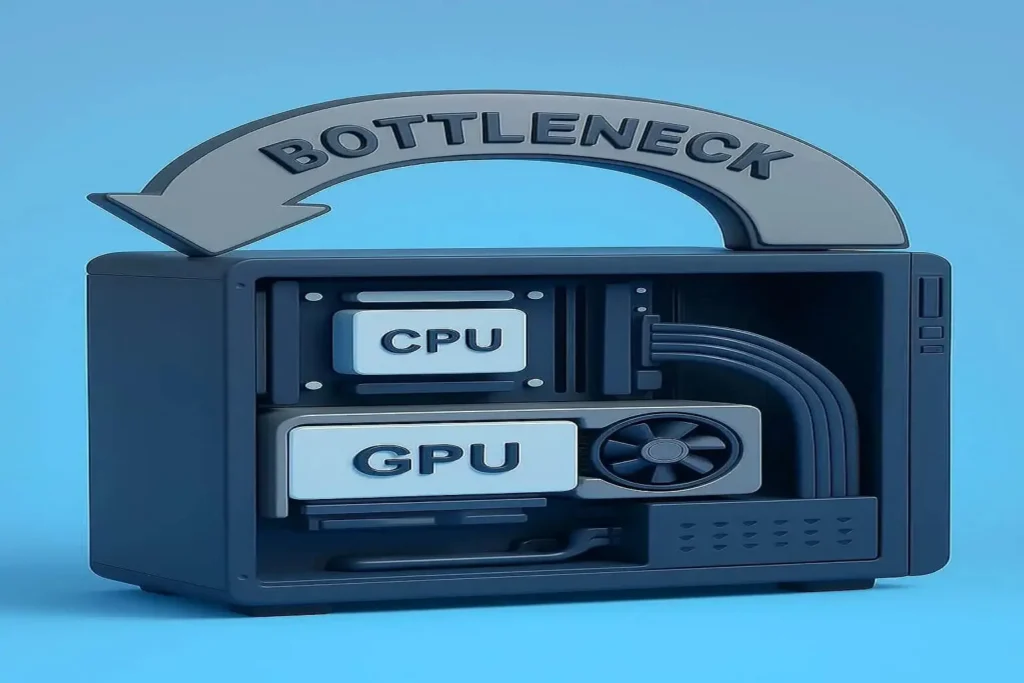
Table of Contents
The Three Key Components That Impact Gaming Performance
1. CPU (Processor)
The CPU is the central brain of your PC it handles all the logic, instructions, and calculations that keep your games running smoothly. It manages tasks such as physics simulation, AI behavior, and overall game logic. A strong CPU ensures faster load times, smoother gameplay in open-world or CPU-heavy titles (like strategy or simulation games), and better multitasking when streaming or recording gameplay.
2. RAM (Memory)
RAM acts as your system’s short-term memory, temporarily storing data that the CPU needs quick access to. If your system has too little RAM, it can cause stuttering, long load times, and frequent data swapping to your storage drive. For modern gaming, 16GB is the sweet spot, while 32GB is ideal for heavy multitasking, streaming, or content creation. Faster RAM speeds (e.g., 3200MHz or higher) can also improve frame consistency and responsiveness.
3. GPU (Graphics Card)
The GPU is responsible for rendering visuals, textures, and effects in your games. It determines how detailed your games look and how smoothly they run at different resolutions. A powerful GPU enables higher frame rates, better image quality, and support for advanced graphical features like ray tracing and DLSS. In most modern games especially at higher resolutions like 1440p or 4K the GPU is the main factor that dictates overall performance.
How Do These Components Work Together?
Your CPU handles the game’s logic and background tasks, the RAM temporarily stores data for quick access, and the GPU turns all that information into visuals on your screen. When one component falls behind like a slow CPU paired with a powerful GPU it creates a bottleneck, limiting overall performance. Keeping all three components balanced allows your system to run efficiently, delivering smooth, stable, and consistent gameplay.
Signs and Symptoms of a Hardware Bottleneck
If your games stutter, show low FPS, or experience sudden lag spikes, you might be facing a hardware bottleneck. Overheating is another major clue when components like your CPU or GPU get too hot, they automatically slow down (thermal throttling) to prevent damage. If your PC feels unusually hot or freezes during demanding moments, that’s a clear sign something’s limiting performance.
What Causes Hardware Bottlenecks?
Bottlenecks usually happen when one component is much weaker than the others — for example, pairing an older CPU with a high-end GPU. Poor airflow or dusty fans can also cause overheating, forcing parts to throttle their performance. Inadequate cooling setups or blocked vents inside your PC case make this worse, restricting the full potential of your hardware.
How to Diagnose Hardware Bottlenecks Like a Pro
Open Windows Task Manager (Ctrl + Shift + Esc) to monitor your CPU, GPU, and RAM usage while gaming. If any of them consistently hit 90–100%, it means that component is being pushed to its limit. Tools like HWMonitor or MSI Afterburner can track temperatures — readings above 80°C often suggest cooling issues. Running benchmarking software such as 3DMark or Cinebench provides detailed performance scores to pinpoint your weakest link.
Practical Fixes to Solve Hardware Bottlenecks
If your RAM usage is maxed out, upgrading to a higher capacity (e.g., 16GB or 32GB) can help. When your CPU or GPU is the limiting factor, consider upgrading to a more balanced option that matches your system’s power. Improve cooling performance by cleaning dust, improving airflow, or using better fans and thermal paste. You can also lower in game settings like shadows, resolution, or anti-aliasing to reduce strain and improve FPS.
Popular Games and Their Hardware Demands
Every game has different system requirements. Here’s a quick overview of popular titles and their recommended hardware specs to help you match your build for smooth, lag-free gameplay.
| Game Title | Recommended CPU & RAM | Recommended GPU |
|---|---|---|
| Call of Duty: Modern Warfare | Intel i5-6600K / Ryzen 5 with 16GB RAM | GTX 970 / RX 580 |
| League of Legends | Intel i3-530 / AMD A6 with 8GB RAM | GeForce 8800 / Intel HD 3000 |
| Cyberpunk 2077 | Intel i7-4790 / Ryzen 3 with 16GB RAM | GTX 1060 / RX 590 |
| Fortnite | Intel i5-7300U with 8GB RAM | GTX 960 / R9 280 |
| Minecraft | Intel i3 / Ryzen 3 with 8GB RAM | GTX 660 / Radeon HD 7870 |
Preventative Maintenance for a Bottleneck Free PC
Keep your PC dust-free by regularly cleaning fans and heatsinks. Place your PC in well-ventilated, cool areas to avoid heat buildup. Always update your graphics drivers and system software to maintain optimal performance.
Bonus Tips for Gamers and PC Builders
When building or upgrading your gaming PC, balance is the key. Instead of pouring your entire budget into a high-end GPU or CPU alone, aim for components that complement each other — a powerful GPU with a mid-range CPU won’t perform at its best if the processor can’t keep up.
If you’re comfortable with it, overclocking your CPU or GPU can unlock extra performance. However, this should be done cautiously, as pushing your hardware beyond its limits can cause overheating and reduce lifespan. Always use reliable cooling solutions like liquid coolers or high-airflow fans to manage temperatures.
To get the most out of your system, use performance monitoring tools such as MSI Afterburner, CPU-Z, and HWMonitor. These help you track temperatures, clock speeds, and utilization in real-time — letting you fine-tune settings for maximum stability and performance.
Lastly, regular maintenance is just as important: keep your drivers updated, clean dust from your components, and ensure proper cable management to maintain airflow and efficiency.
Troubleshooting Flowchart: Step-by-Step Fixes for Hardware Bottlenecks
A simple flowchart helps identify if your bottleneck is caused by CPU, RAM, GPU, or overheating. Start with monitoring usage, then clean hardware, upgrade components, or adjust game settings based on findings.
Real Gamer Stories: How They Fixed Their Hardware Bottleneck
- Case 1: Upgrading RAM from 8GB to 16GB eliminated stutters in heavy games.
- Case 2: Cleaning dust and adding extra fans reduced overheating and improved FPS dramatically.
Recommended Software and Hardware Tools
- HWMonitor: For real-time temperature tracking.
- CPU-Z: Hardware specs and benchmarking.
- MSI Afterburner: GPU monitoring and overclocking.
- Budget-friendly upgrades: Consider SSDs for faster load times and better airflow cases.
Conclusion
Hardware bottlenecks can ruin your gaming experience, but the good news is they’re easy to resolve with the right approach. By balancing your CPU, RAM, and GPU, keeping your system clean and cool, and regularly monitoring performance, you can prevent slowdowns and stutters. Stay proactive — optimize your setup today and enjoy smooth, lag-free gaming every time!
FAQs
How do you fix a hardware bottleneck?
Fixing a hardware bottleneck involves identifying the weakest component (CPU, RAM, or GPU) that limits performance and upgrading it. You can also improve cooling, clean dust from components, and optimize game settings to reduce hardware strain.
What is hardware bottleneck?
A hardware bottleneck occurs when one PC component runs slower than others, limiting the overall system performance. This imbalance causes slowdowns, lag, and poor gaming or computing experiences.
How to solve a bottleneck?
To solve a bottleneck, diagnose which part is underperforming using tools like Task Manager or benchmarking software. Then either upgrade that component, improve system cooling, or adjust software settings to balance workload across your hardware.
How do you prevent bottleneck in PC build?
How do you prevent bottleneck in PC build?
Prevent bottlenecks by choosing balanced components with compatible performance levels. Avoid pairing an outdated CPU with a high-end GPU or vice versa. Plan your build around your main use case, and invest in adequate cooling and sufficient RAM.